Customers may use virtual try-ons to get a sense of what it’s like to wear a piece of apparel. This is especially beneficial if the consumer is unable to try on the products in your store.
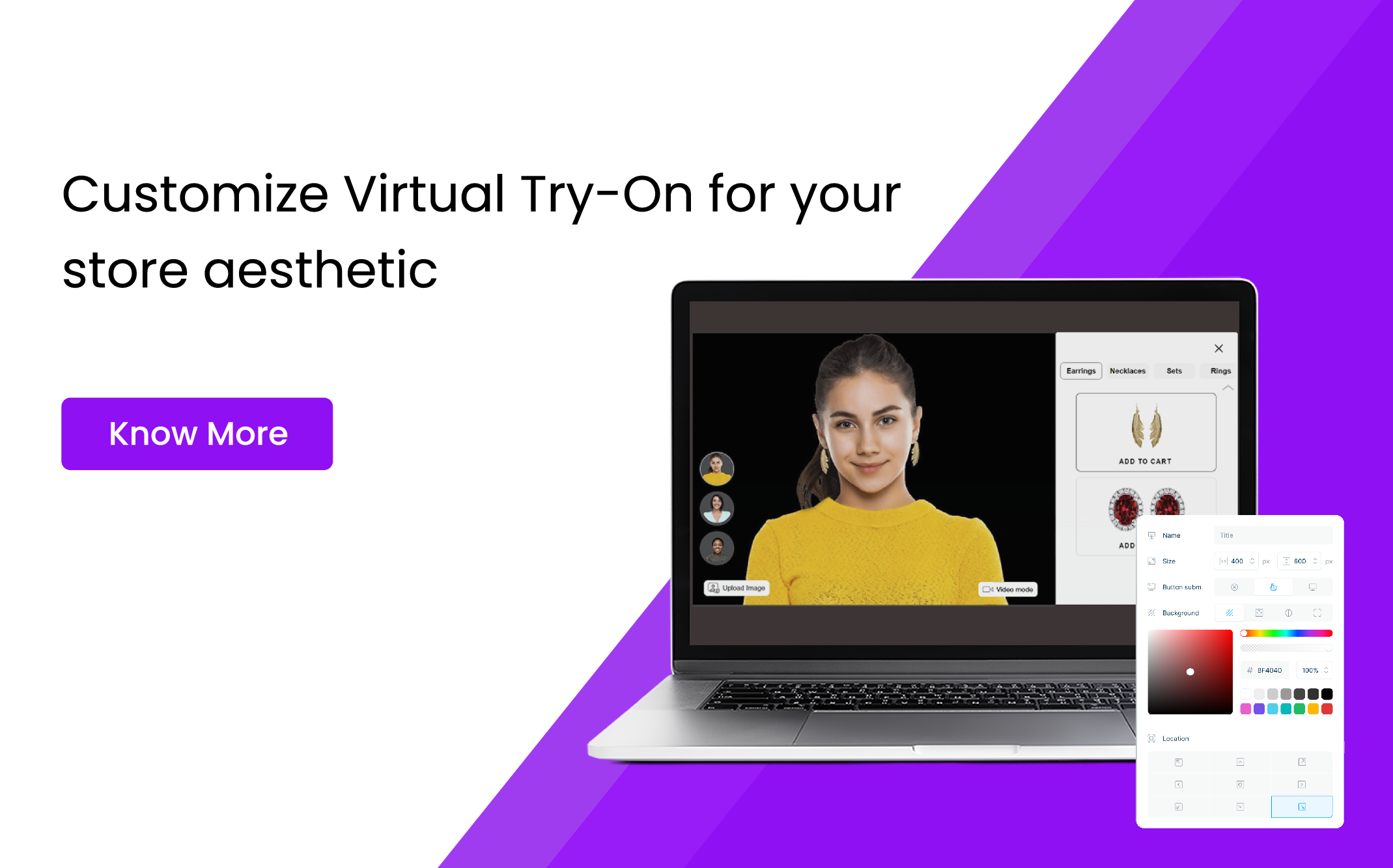
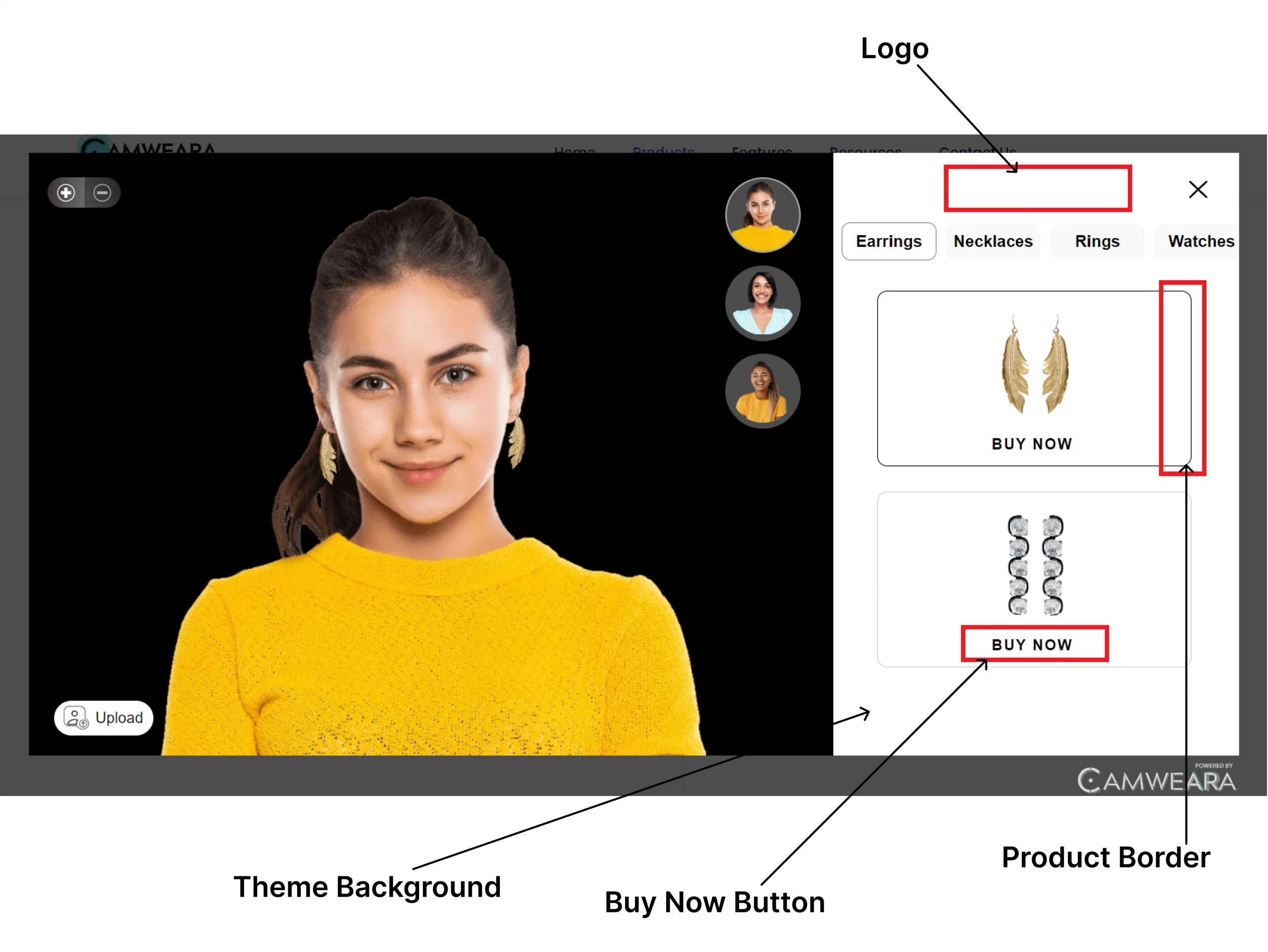
Camweara Jewelry Try-On provides a variety of customization choices. We have provided customization tools so you can modify the features and themes to meet your aesthetic and store design.
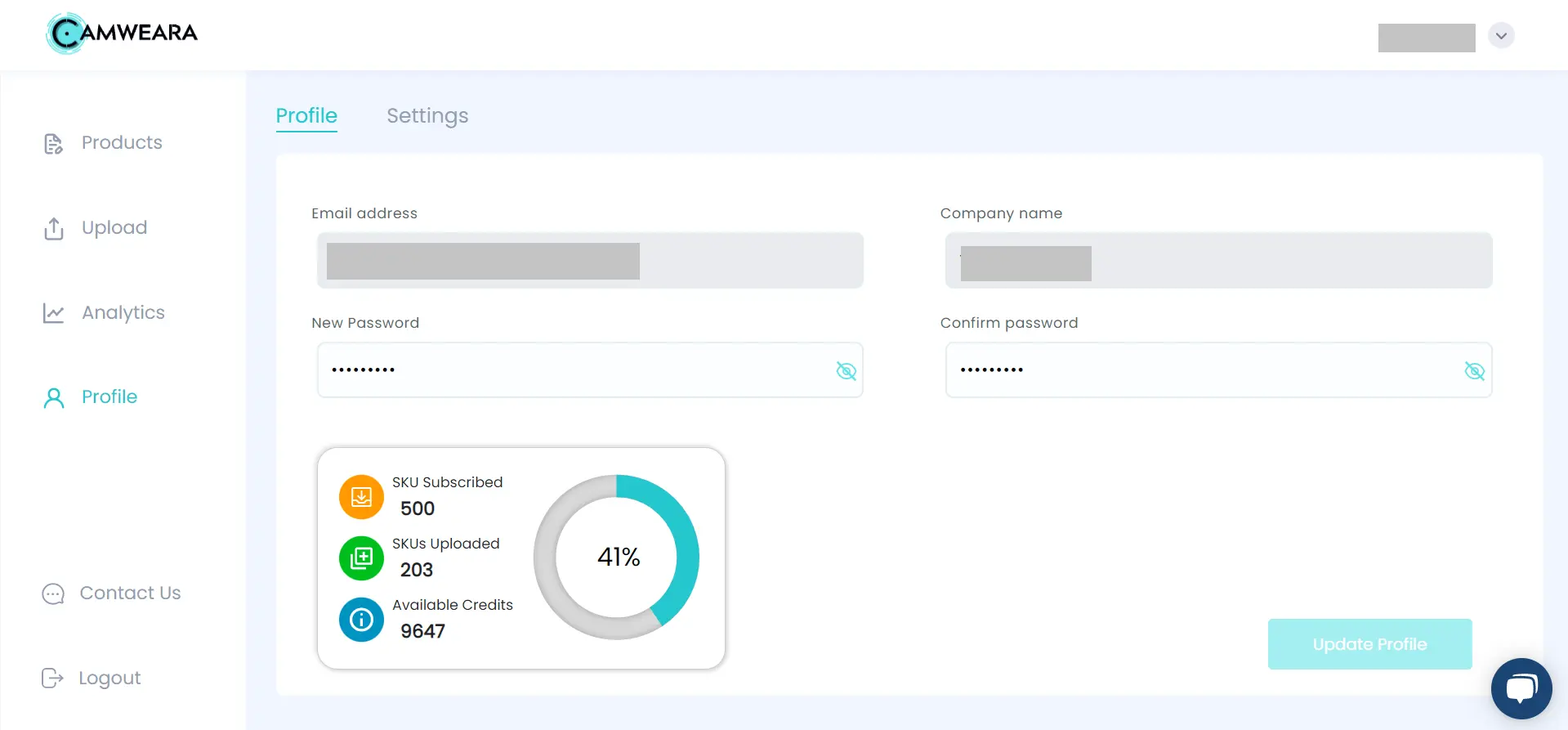
2. Select the Profile Tab
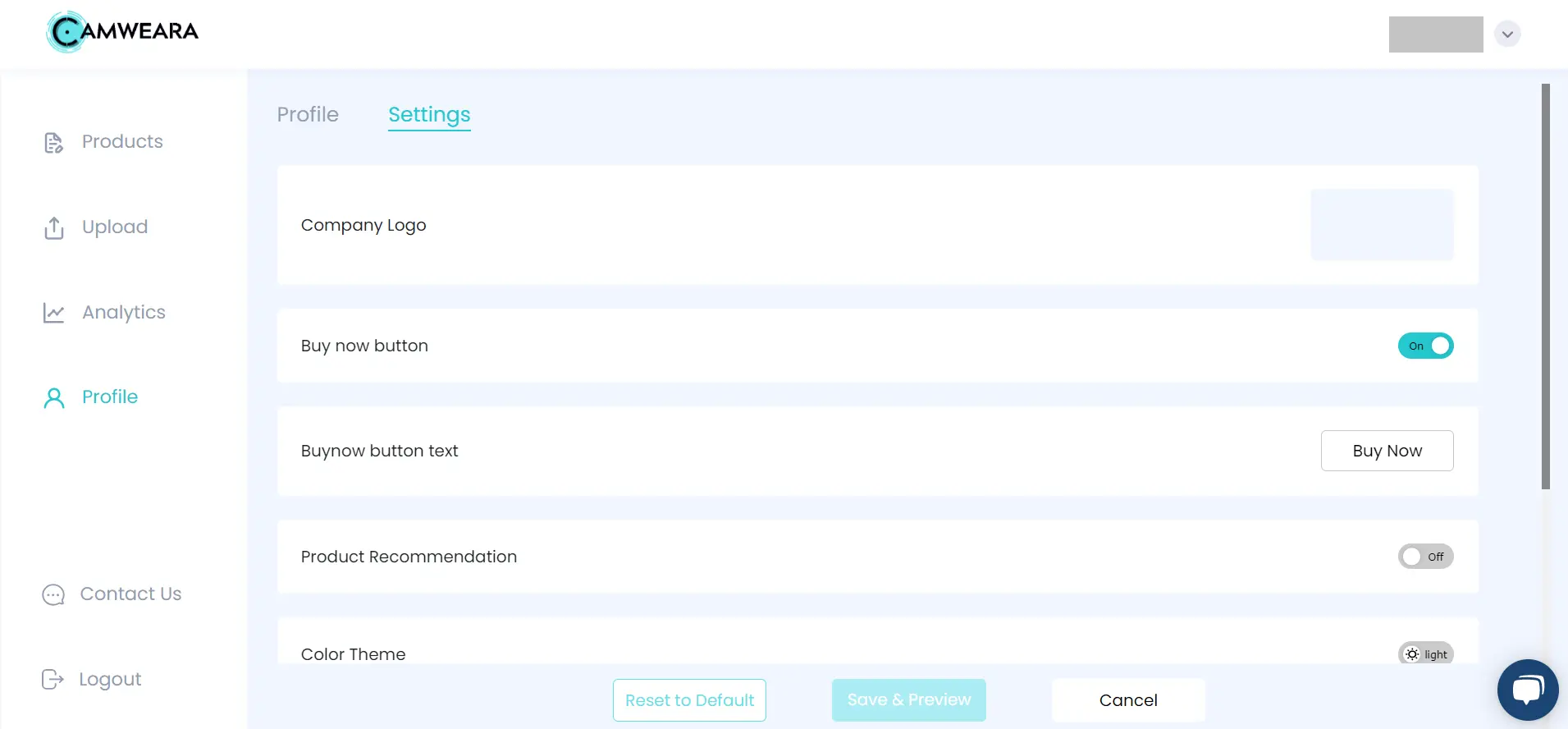
As soon as you choose the Profile Tab, the Settings tab will become available in the top navigation. From there, you may choose the Settings tab and modify the Try On settings.
To fit your demands, you can modify your company’s logo. After the settings in the dashboard have been saved, the new logo will be effective right away. You can alter as frequently as you like.
In the Camweara virtual try-on, we feature a “purchase now” button that you can enable or disable. Additionally, we have the choice to change the button’s text, which is displayed in try-on. For the text, you can choose your own font or create custom text to suit your needs.
- Product Recommendation & Language
The product recommendations in the virtual try-on can be enabled or disabled. Additionally, you can adjust the language of the try-on to suit your preferences; after the settings have been saved, you should be able to view the changes.
Currently, Virtual Try-On offers two themes—the light theme and the dark theme—that are both simply switchable from the dashboard with a single click. Additionally, we’ve given you access to a border line editor so you may adjust the radius line’s thickness and colour to suit your store’s preferences and requirements.