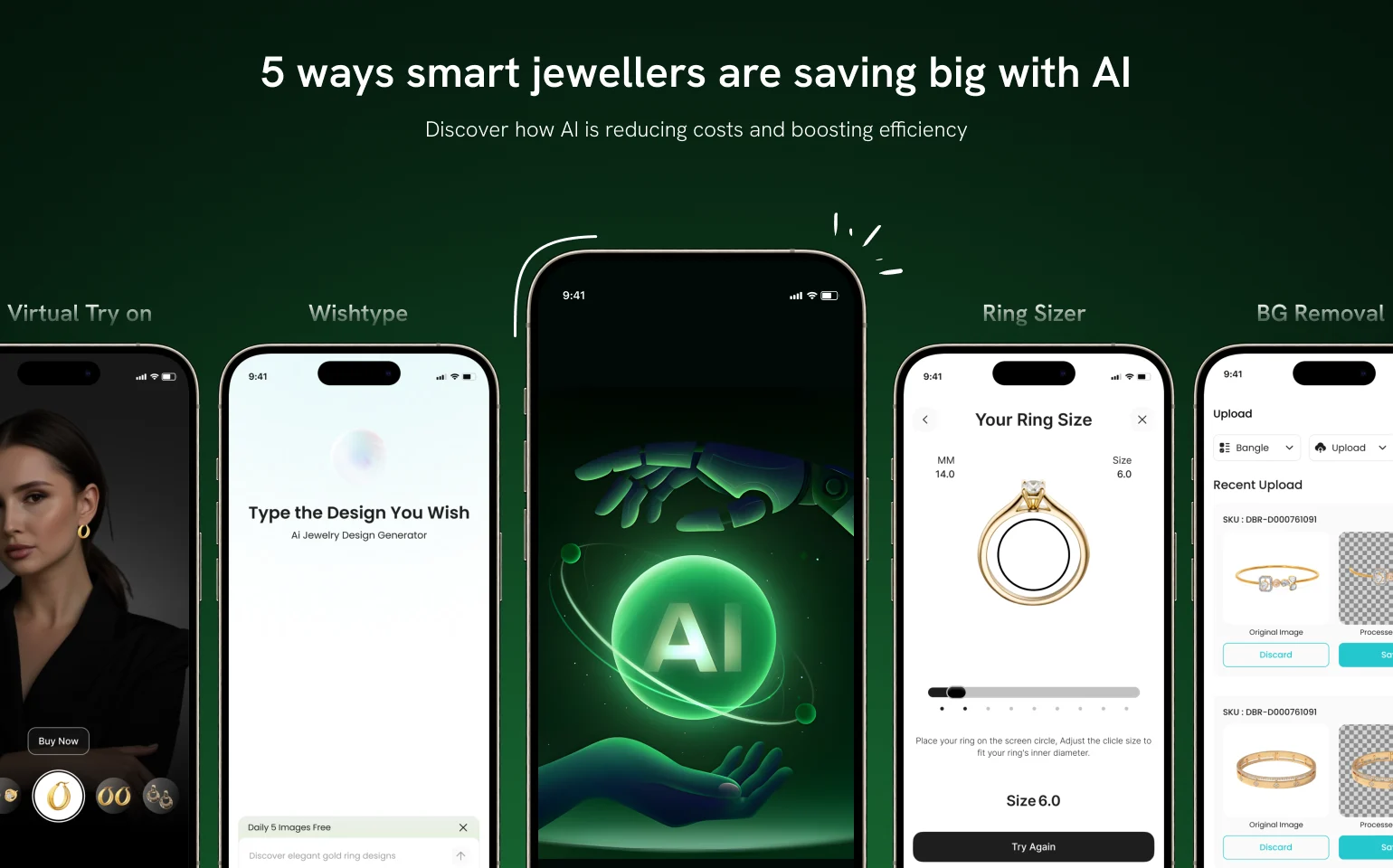
Somewhere in the last couple of years, “Try It On” stopped being a nice extra on a product page and started being something shoppers just expect the same way free shipping did a decade before it. Stores that don’t have it yet aren’t behind on purpose. They just haven’t gotten to it, and that project usually starts the same quiet way: someone browsing a competitor’s site notices the button, tries it, and wonders why their own store doesn’t have one.
Once that question is on the table, though, it rarely moves fast but that’s not because virtual try-on doesn’t work, but because there are a dozen apps promising the same button, and no easy way to tell which one is actually good until you’re weeks into an install and something breaks. This guide cuts through that: what actually separates a good virtual try-on integration from a bad one, and then the exact setup for Camweara which is currently the highest-rated virtual try-on app on the Shopify App Store, so you can see for yourself how little work is actually involved.
Why Camweara Is the Highest-Rated Virtual Try-On App on Shopify
Camweara maintains a 4.9/5 rating on the Shopify App Store, and the pattern across the reviews is consistent as merchants call out the same things over and over for best try-on experience, smooth installation and responsive support. Brands like Fink’s Jewelers, Seiko, Specsmakers, and FeelGood are already running on it as part of a client base of 150+ brands across 20+ countries.
How to Install Camweara on Your Shopify Store
Step 1: Install Camweara In the Shopify App Store, search for Camweara Virtual Try On and click Install to authorize it on your store.
Step 2: Access the Upload Dashboard In your Shopify admin sidebar, navigate to Apps > Camweara Virtual Try On and click Go to Upload.
Step 3: Configure Category and Upload Images Select your product category from the dropdown menu (e.g., Jewelry, Clothes, Shoes, Eyeglasses, or Accessories), upload your 2D transparent PNG or 3D .glbfile following the on-screen formatting guidelines in the right-hand panel, and click Save.
Step 4: Open the Theme Editor Navigate to Online Store > Themes in your Shopify admin and click Customize on your active theme.
Step 5: Navigate to Product Pages and Add the Try-On Block Use the top-center dropdown menu to load your Default product template, then click Add block within the left sidebar’s Product Information section, and select the Try-On Button from the Apps tab.
Step 6: Publish the Changes Click Save in the top right corner of the editor to push the try-on button live to your storefront.
What to Expect After Installation
Confirm which pages the button applies to The Try-On Button is added at the product-page level through Shopify’s theme customizer. Check with Camweara support or test it yourself on whether adding the block once get carried across your whole product template or needs to be repeated per page, that detail matters a lot more once you’re rolling this out across a full catalog rather than one product.
Prep your images properly The realism of the try-on is only as good as the source photos. If your existing product photography wasn’t shot with try-on in mind, The Camweara team can handle the editing for you. Just make sure front-view and top-view images are ready to start. Full image specs:Jewelry Image Specificationsor Eyewear Specifications.
Test across categories A ring page and a jewelry page render differently, spot-check a handful of products across your catalog, not just the first one you uploaded, before pushing the announcement out.
Watch the Step-by-Step Video Walkthrough
What is the best virtual try-on app for Shopify?
Camweara is currently the highest-rated virtual try-on app on the Shopify App Store, at 4.9 out of 5. It supports jewelry, eyewear, footwear, clothing, and accessories, and installs as a native Shopify app with no code required.
How long does it take to add virtual try-on to a Shopify store?
Most stores are fully live within hours of installing the app, assuming product images are ready. The "Try On" button is added to product pages automatically once products are approved, no manual placement needed.
Do I need a developer to install Camweara in my Shopify Store?
No. Camweara installs from the Shopify App Store like any standard app. Unlike platforms that require pasting an API snippet into theme code, Shopify merchants don't need to touch any code to get the feature live.
Does virtual try-on slow down page load speed?
No. The widget loads asynchronously, so it doesn't block or delay the rest of the product page.
We use minimal cookies to improve your experience. Privacy policy
Functional
Always active
We use minimal cookies to improve your experience.
Preferences
The technical storage or access is necessary for the legitimate purpose of storing preferences that are not requested by the subscriber or user.
Statistics
We use minimal cookies to improve your experience.The technical storage or access that is used exclusively for anonymous statistical purposes. Without a subpoena, voluntary compliance on the part of your Internet Service Provider, or additional records from a third party, information stored or retrieved for this purpose alone cannot usually be used to identify you.
Marketing
We use minimal cookies to improve your experience.